Overview
Learn how to group giving for families and customize your template to address everyone on the statement.This article explains how to group multiple individuals’ giving into one family statement in, including how to update your template so it’s addressed to everyone—not just the primary member.
Why This Matters
Combining household giving into one statement makes tax prep easier and ensures accuracy. It’s especially helpful when couples or families give jointly but have separate profiles.
At a Glance
- Group giving requires all individuals to be in the same family
- “Group Giving with Family” affects future gifts
- Use “Consolidate Family Giving” to merge past giving
- Address your statement to more than one person using placeholders
Before You Begin
- Estimated Time: 5–10 minutes
- Required Role: Admin or permission with access to Giving & Family settings
- What You’ll Need: Names of the individuals to group together, and access to General Settings
Steps to Group Giving Statements by Family
1. Add Individuals to the Same Family
- Go to each person’s profile and ensure they’re members of the same family.
- For help with this step, see Add People to a Family.
2. Group Giving for Future Contributions
- Open the Primary Individual’s profile.
- Click the Family tab.
- Check the box under “Group Giving With Family?” for each member you want to include.
- Click Save.
💡 This setting only applies to future contributions.
3. Consolidate Past Giving
- To group past giving, use the Consolidate Family Giving feature.
- For steps, see Consolidate Giving.
4. Update the Giving Statement Template
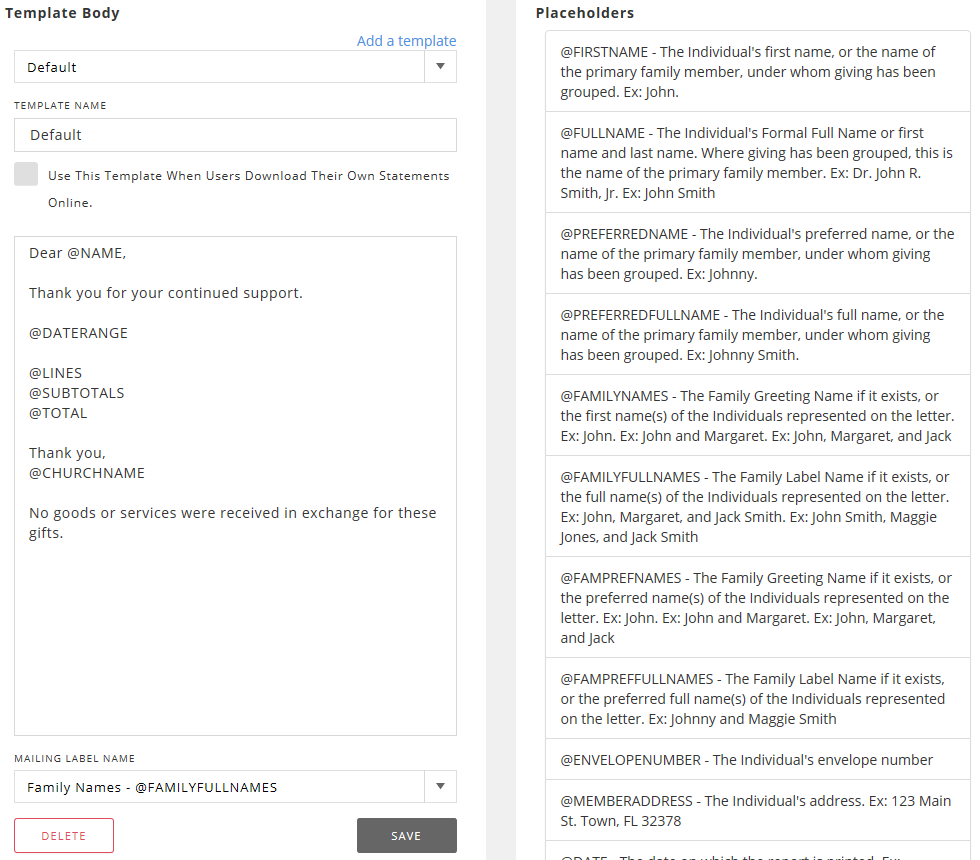
- Navigate to: General Settings → Giving → Giving Letter Template.
- The first line will usually say:
Dear @NAME,
- Change @NAME to a more inclusive placeholder like:
- @FIRSTNAMES
- @FAMPREFNAMES
- @FAMILYNAMES
This ensures the statement is addressed to the whole household instead of just the primary person.
5. Save Your Template
- After updating the placeholder, click Save to lock in your changes.
Important Notes
- “Group Giving With Family” only affects future donations. To reflect past donations on a grouped statement, always use “Consolidate Family Giving.”
- If you only change the giving template placeholder but don’t check “Group Giving With Family,” each person’s donations will still appear on separate statements.
FAQ
Q: Can I undo family grouping or consolidation later?
A: You can remove family grouping for future giving by unchecking the boxes under “Group Giving With Family.” However, consolidated past giving cannot be undone.
Q: Will this affect tax summaries or donor records?
A: Yes. Family grouping affects how giving is reported and may change the total shown on statements. Make sure to verify totals after updating templates.
Updated